Friday, January 13, 2012

Recover Deleted Public Folder from Exchange 2003

Q: Customer contacted us to say that a public folder with over 1,000 items had vanished.
A: We were able to recover it as a deleted item using Outlook.
  1. Open Outlook
  2. Navigate to Public Folders
  3. Click the parent folder deleted folder
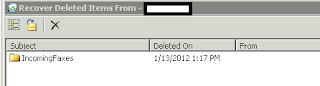
  4. Click Tools, "Recover Deleted Items" 
  5. It showed the folder that had been deleted.
  6.  
  7. Select the folder, click the second icon in the toolbar "Recover Selected Items"
We found this link on Google and it has a much more details explanation of Exchange settings etc.

Tuesday, December 20, 2011

Wordpress Updates fails on Server 2008 with IIS 7

Issue: The customer reported issues applying an update to a Wordpress site hosted on Windows Server 2008 on IIS 7.

Solution: We noticed IUSR was the account attempting to access the website folder during the upgrade.  We granted IUSR Read/Write/Modify permissions to that folder and the update completed.

Thursday, December 8, 2011

ESET Remote Administrator Console - License Manger

Q: ESET ESET Remote Administrator Console - License Manager is displaying the wrong company license.
A: Apparently, the license files are stored in a folder.  We performed these steps to fix the situation.

  1. Make sure you have the newest license file "nod32.lic" for NOD32 from ESET Support.
  2. Stop the "ESET Remote Administrator Server" service.
    1. net stop era_server
  3. Browse to: C:\Documents and Settings\All Users\Application Data\ESET\ESET Remote Administrator\Server\license\
    1. Move all files to another folder for archive/safety.
  4. Start the "ESET Remote Administrator Server" service.
    1. net start era_server
  5. Open ESET Remote Administrator Console. You'll be presented with the warning below that you're "connected to a trial version of ESET Remote Administrator Server". Click OK
  6. Warning Message:
  7. Once you click OK, you'll be presented with the License Manager:
  8. Simply click Browse select the file, click OK. 
  9. You'll be asked if you want to Upload to Server, click OK and you're done.


Monday, December 5, 2011

Point a SEP Client to a different Manager

ISSUE: The customer has Symantec Endpoint Protection installed on a workstation.  They have two separate Symantec Endpoint Protection Manager servers.  How can we modify the workstation to start using the new SEP Manager for updates?
SOLUTION: The config file for a 64-bit workstation that determines which Manager is used is C:\Program Files (x86)\Symantec\Symantec Endpoint Protection\SyLink.xml.  The easiest solution is to simply copy this file from one workstation (using the new server) to this workstation using the steps below:

On each system please:
  1. Click Start - Type this command SMC -stop <hit enter> (To Stop SEP) (Enter password: symantec if prompted)
  2. Browse to: C:\Program Files (x86)\Symantec\Symantec Endpoint Protection\
  3. Rename current SyLink.xml (feel free to view this as it will reference the Update Manager)Copy the new SyLink.xml into this folder
  4. Click Start - Type this command SMC -start <hit enter> (To Start SEP)

Thursday, December 1, 2011

SQL Server 2008 R2 - Report Server Web Service is not configured

ISSUE: Report Server Web Service is not configured. Default values have been provided to you.  To accept these defaults simply press the Apply button, else change them and then press Apply.

But when you click Apply you get the response:
Reserving url http://+:80
The Url has already been reserved

RESOLUTION:  Using the "netsh http show urlacl" command we see that /ReportServer and  /Reports are already reserved.
You can also run "netsh http show urlacl | find "Report"" - to see just those two lines.
>netsh http show urlacl | find "Report"
    Reserved URL            : http://+:80/ReportServer/
    Reserved URL            : http://+:80/Reports/

To resolve - simply delete the reserved URLs and recreate them.  I think we're to assume SRSS had been installed on this server once before but not properly uninstalled.

C:\Windows\system32>netsh http delete urlacl http://+:80/ReportServer/
URL reservation successfully deleted

C:\Windows\system32>netsh http delete urlacl http://+:80/Reports/
URL reservation successfully deleted

Then if you re-run >netsh http show urlacl | find "Report" - you'll see nothing.

Now to re-create the bindings:
  1. Open "Reporting Services Configuration Manager" -Click Connect
  2. Click "Web Service URL" - then click "Apply" at the bottom and it should succeed this time.
  3. Click "Report Manager URL" - then click "Apply".  If Apply is grayed out, simply rename Reports to Report, then back to Reports.  Apply will become available and you can click it.
  4. Then visit each URL to test.

Tuesday, November 15, 2011

How to tail a file in Windows using Notepad++

Q: Notepad++ is great for viewing log files but the prompt that file has been updated gets old.  How can we configure it to automatically reload when the log file has been updated?

UPDATE: They have added this feature to the toolbar in Notepad++ (open the file then click the EYE in the toolbar)
https://notepad-plus-plus.org/news/notepad-6.9.2-released.html

Or use Baretail - which supports highlighting - https://www.baremetalsoft.com/baretail/

A: Install the Document Monitor Plugin.
  1. Open Notepad++ (Available here)
  2. Click Plugins / Click Plugin Manager / Click Show Plugin Manager
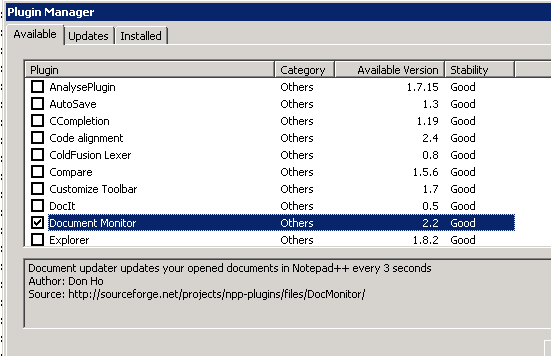
  3. Click the checkbox next to "Document Monitor" (Figure 1) then click Install (let it restart Notepad++ when prompted.
  4. With Notepad++ open, open the log file to be monitored
  5. Click Plugins, click Document Monitor, click "Start to Monitor"
  6. The file will automatically be reloaded when it is updated.
Figure 1: Install Document Monitor plugin

There is also a great application called Baretail for this.

Monday, November 14, 2011

Server 2008 Event Log Filter by XML for a Username

Issue: Customer presented us with a Server running 2008 and wanted to filter the logs for events associated to a user.  When you use the same method as Server 2003 you get no results.

Solution: We had to migrate to use the XML Filtering.
  1. within the Security Event Log, click "Filter Current Log..." on the right
  2. Click the XML tab at the top
  3. Click (X) Edit query manually
  4. Replace the select line:     <Select Path="Security">*</Select>
  5. With this line (where %username% is the account you want):    <Select Path="Security">* [EventData[Data[@Name='TargetUserName']='%username%']]</Select>